

From installing to your first presentation in minutes. No setup required.
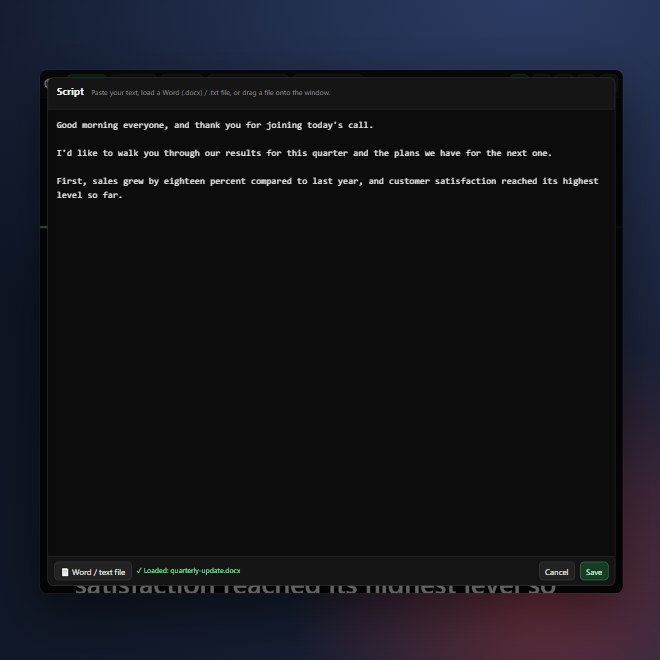
Paste it, or drag your Word (.docx) / text file onto the window.
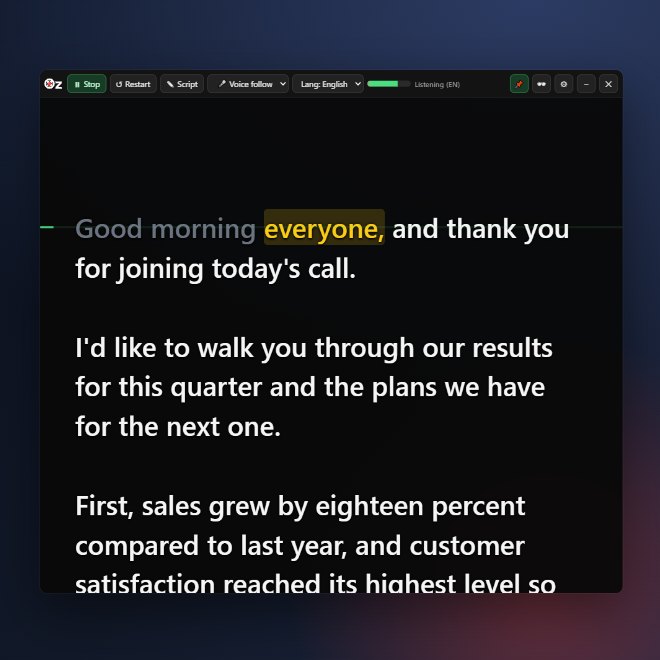
Use Ctrl+Alt+Space (Control+Option+Space on a Mac) to start and stop, even while Zoom is in front.
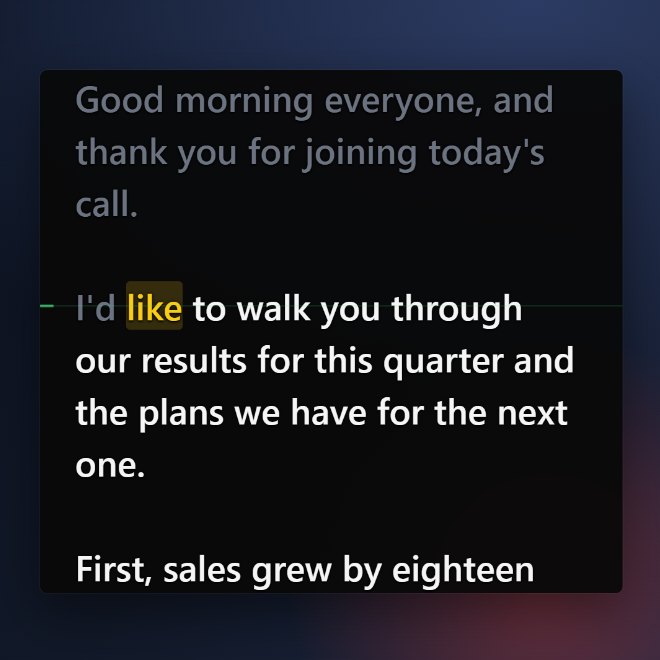
The word you are reading is highlighted and the script moves with you.
Follow the steps for your computer. On both systems your 7-day trial starts on first launch.
Windows 10 / 11 (64-bit) · about 180 MB
Click "Download for Windows", then double-click the OzPrompter-Setup file you downloaded. Setup takes a few seconds.
If this warning appears, click "More info" and then "Run anyway". It is normal for newly published apps.
In Settings → Privacy & security → Microphone, make sure "Let desktop apps access your microphone" is on.
Open OzPrompter from the desktop or Start menu shortcut. Your 7-day trial starts, with every feature unlocked.
macOS 11 or later · Apple Silicon (M1–M4) and Intel · about 300 MB · Beta
Click "Download for Mac" and open the OzPrompter.dmg file. Drag the OzPrompter icon into your Applications folder.
If the first launch says "Apple could not verify OzPrompter is free of malware", click "Done". This is expected in the beta.
Go to System Settings → Privacy & Security, scroll down and click "Open Anyway", then confirm. You only need to do this once.
When OzPrompter asks for the microphone, click "Allow". Your 7-day trial starts, with every feature unlocked.
On a Mac, Control+Option+Return also starts/stops. Inside the window: Space start/stop · ↑↓ back/forward · ←→ speed · +/− font size · click any word to continue from there.
Download, install and give your first presentation. No credit card needed.
Windows 10 / 11 (64-bit) · about 180 MB
macOS 11+ · Apple Silicon and Intel · about 300 MB · Beta
Microphone required · Step-by-step installation →